
From Drone Capture to Processed Map Without Opening a Browser

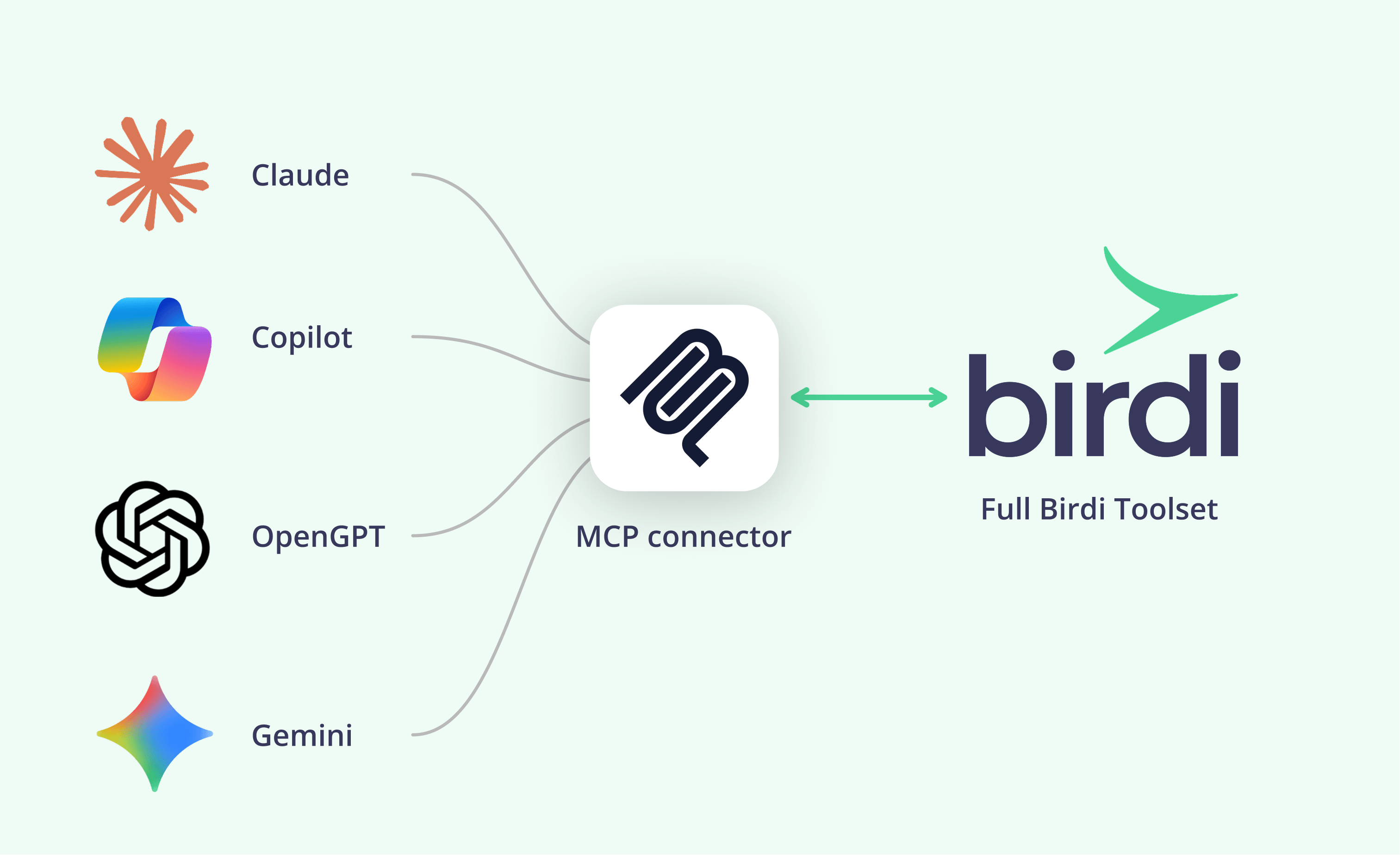
TL;DR: You can go from a drone capture folder to a processed map without opening a browser by using an AI assistant that can see your computer's files, such as Claude Code. Open it in the capture folder, ask it to upload the images to a new map, approve the processing quote, and then ask questions of the finished map.
Key takeaways
- Only an assistant with file access can upload. Browser chat assistants can't reach your laptop's files, so this workflow needs a tool such as Claude Code.
- Nothing should be processed without your yes. A well-designed connector gets a quote first and spends existing processing credit only after you confirm.
- Good capture still decides the result. According to a 2020 study in Agronomy Research, drone volumes were within 4% of laser scanning, and ground control improved accuracy further.
- AI is becoming part of the working day. According to Gallup, 15% of US employees used AI daily in their role as of May 2026.
- It suits regular flyers most. For an occasional upload, the platform's own uploader is just as quick.
Where does the time go after a drone flight?
After a flight, the time goes on handling: copying images off the cards, checking the set is complete, grouping it by site, uploading it, starting processing, waiting, then sharing the result. None of it is hard, but it repeats after every flight, and it usually happens at the end of a long day on site.
For a pilot or survey team who flies several sites a week, those steps add up. They also create small risks. A capture uploaded to the wrong map, or a folder named only by date, can cost far more time later than the upload itself saved.
The aim, then, is not to skip any step. Instead, it is to make the routine consistent: the same request, the same naming, the same check before anything is spent. An assistant that can see your files can run that routine for you.
What makes an upload go smoothly?
A smooth upload starts before the flight: one folder per capture, named with the site and date, a complete image set, and ground control recorded where you use it. Clean inputs mean the assistant, or anyone else, can upload and process without guessing which images belong together.
Capture quality matters more than the upload method. According to Kokamägi, Türk and Liba in Agronomy Research (2020), drone photogrammetry volumes were within 4% of a terrestrial laser scan. They also found that ground control points improved accuracy. So the flight plan and control decide how good the map is; the upload only moves the data.
Before you fly, it helps to settle three habits:
- Name by site and date, such as "Kingsford 2026-10-19", not by card or camera.
- Keep one capture per folder, so a single request uploads one complete set.
- Record your control, so the processed map can be checked against it.
For the basics of capture, see the drone mapping beginner's guide.
What do you need to upload from an AI assistant?
You need three things: a mapping platform with an MCP connector that supports uploads, connected with read-and-act access; an AI assistant that can read files on your computer, such as Claude Code; and the capture on that computer. Browser-based chat assistants can't reach local files, so they can't do the upload step.
In this guide, the worked example is Birdi (birdi.io), a geospatial workspace for construction and mining teams. Its connector runs on all paid Birdi plans. According to Birdi's AI connector guide, Claude Code is available on Claude's Pro plan and above, and it is the only assistant in that guide that can upload drone data from your computer.
If you haven't connected an assistant before, start with connecting your AI assistant. Connect read-only first if you only want to explore, then reconnect with read-and-act access when you're ready to upload.
How do you upload a capture and send it for processing?
Open Claude Code in the folder that holds the capture, and ask it to upload the images to a new map named by site and date and send them for processing. Review the processing quote it returns, confirm, and let processing run. Then ask your first questions of the map once it is ready.
Here are the steps with Birdi:
- Open Claude Code in the capture folder on your laptop.
- Ask for the upload. For example: "Upload this capture to a new Birdi map called Kingsford October and send it for processing."
- Review the quote. Before anything is processed, the assistant gets you a quote. It only uses your existing processing credit.
- Confirm. Processing starts only after you say yes. If the job needs more credit than you have, you get a payment link rather than a charge.
- Carry on with your day. Processing and other long jobs run in the background, and the assistant tells you when they're ready.
Because the assistant acts as you, it can only upload to workspaces you can already use. Moreover, it can't delete data, share maps, invite users or send emails, so a mistaken request can't remove or expose anything.
What can you ask once the map is processed?
Once the map is processed, you can ask questions in plain language from any connected assistant, not just Claude Code. Useful first questions check the capture itself, such as the flight altitude and ground resolution, then move on to the job, such as a volume, a set of contours or a snapshot to share.
For example, with Birdi you might ask:
- "What was the flight altitude and GSD for the latest capture?"
- "Show me a snapshot of the Kingsford map with the annotations on."
- "Calculate the volumes on this map and generate contours."
- "What's the stockpile volume on the north pad, in tonnes using our saved materials?"
Treat any description of the map as a second opinion. In Birdi's words, a visual description is "a helpful second pair of eyes, not a qualified assessment". For exact counts or measurements, use the measurement tools, whose figures come straight from Birdi in the map's own units. To turn the result into a monthly deliverable, see the month-end stockpile report guide.
Should you upload this way every time?
Use it when it saves a step, not by default. It suits pilots and survey teams who fly often, keep their captures on a laptop, and want the same routine after every flight. For an occasional upload, or anyone not comfortable in a terminal app, the platform's own uploader is just as quick and needs no setup.
There is a broader shift behind this, and it is worth being measured about. According to Gallup, 15% of US employees used AI daily in their role as of May 2026. That is a real minority, not most people. So build the routine for the people on your team who already work this way, and leave everyone else on the uploader they know.
If your team flies regularly and wants upload, processing and the first questions in one place, Birdi's AI connector is a sensible option to try, because processing always waits for your confirmation. However, a team that processes everything locally with its own photogrammetry software won't need it for this step. For what Birdi's own uploader does, see the file uploader update.
Frequently asked questions
Can ChatGPT upload drone photos to a mapping platform?
Not from your computer. Browser-based chat assistants, including ChatGPT on the web, can't read local files through a connector. Once your images are uploaded another way, a connected ChatGPT can work with the processed data, within the limits of its plan. Uploading from your laptop needs an assistant with file access, such as Claude Code.
Does uploading through an AI assistant cost more?
With Birdi, no. The assistant uses your existing processing credit, the same as uploading in the app, and only after you confirm a quote. If a job needs more credit than you have, you get a payment link instead of a charge. Your AI assistant's own subscription is separate and set by its provider.
How do I know what processing will cost before it runs?
Ask the assistant to upload and prepare the job, then read the quote it returns before confirming. With Birdi's AI connector, processing never starts without that quote and your explicit yes. If the quote is higher than expected, check the image count and resolution before confirming, and cancel if needed.
Can I upload from the field?
Yes, if you have a laptop running Claude Code and a connection good enough for the image set. Large captures upload faster on a strong connection, so you may prefer to upload back at the office or on site Wi-Fi. The steps are the same wherever you are, because the request runs from the capture folder.
What file types can I upload to Birdi?
Birdi publishes its supported file types in its help center, so check that list before you upload an unusual set. Standard drone photos for processing are the common case. If a format isn't listed, convert it first, or ask Birdi's support team before you spend time uploading it.
About the author
This guide was written by the Birdi team. Birdi (birdi.io) is a geospatial AI workspace that construction and mining teams use to share drone, 360 and design data in one map, and the Birdi AI connector links it to AI assistants. We read every source on October 19, 2026, and list each one below.
Related reading
- Introducing the Birdi AI connector: what the connector does, in Birdi's release post.
- Organizing repeat drone surveys: keeping every capture of a site together.
- Evaluating a geospatial AI agent: seven questions to ask before you trust one.
Sources
Research and statistics
- Kokamägi, K., Türk, K. and Liba, N. "UAV photogrammetry for volume calculations." Agronomy Research 18(3), 2020. https://doi.org/10.15159/ar.20.213
- Gallup. "AI in the Workplace" indicator, figures as of May 2026. Checked October 19, 2026. https://www.gallup.com/699797/indicator-artificial-intelligence.aspx
Birdi
- Birdi Help Center. "How to connect Birdi to your AI assistant (Claude, ChatGPT, Copilot and Gemini)." October 2026. https://help.birdi.io/en/articles/17592014-how-to-connect-birdi-to-your-ai-assistant-claude-chatgpt-copilot-and-gemini
- Birdi Help Center. "What file types are supported in Birdi 2.0?" https://help.birdi.io/en/articles/10416278-what-file-types-are-supported-in-birdi-2-0