
Map AI Detect — Automatic object detection for maps

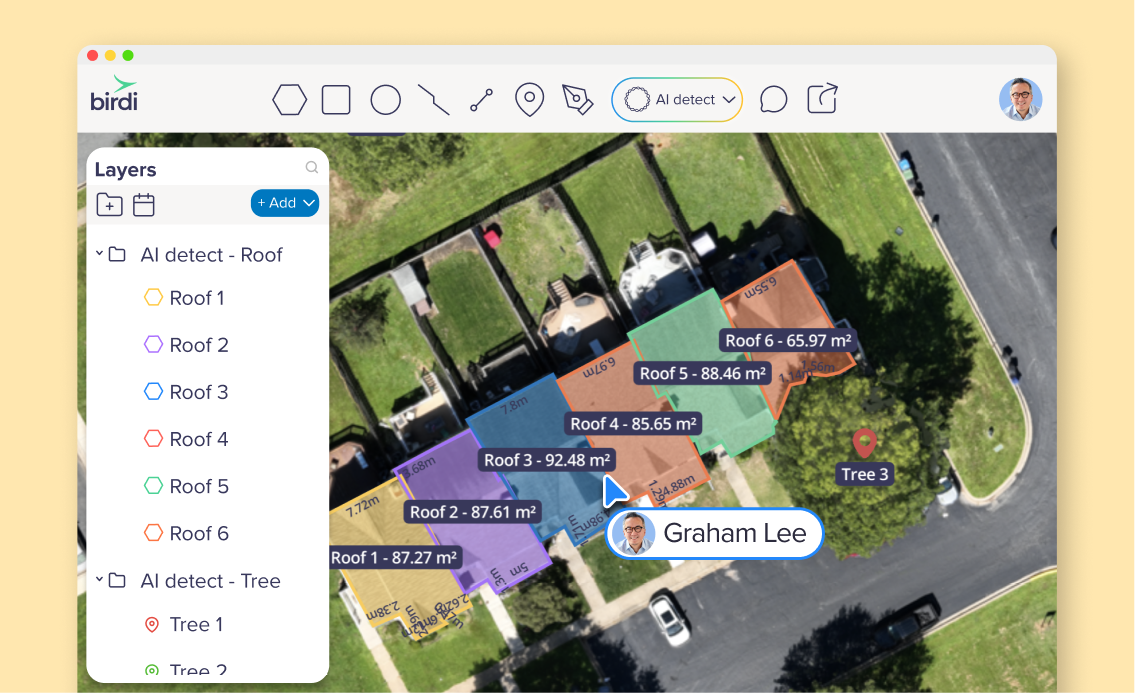
When you’re managing large sites, assets or inspections, manually marking up objects on an orthomosaic can take hours. With Map AI Detect, Birdi brings the power of AI directly into your map workflows — instantly transforming raw ortho imagery into actionable spatial data.
Imagine uploading a high-resolution orthomosaic of a construction site, a quarry stockpile, a utility corridor or a forested area, then having AI scan the map and auto-detect things like vehicles, stockpiles, trees, roofs or other site features. Instead of manually drawing outlines by hand, you just tell Birdi what to look for (e.g. “cars” or “stockpiles”), choose whether you want simple points or detailed polygons, and let Map AI Detect do the work.
Once it’s finished, Birdi creates a new layer full of annotations you can review, measure, export and integrate into reports. It’s geo-referenced, measurable, and instantly usable — with no GIS expertise required.
(We also have AI Detect on individual images! Read the post here: Meet AI Detect: Automatic object tagging on your images)
Why Map AI Detect matters
- Save time and labor — What used to take hours of manual annotation becomes minutes of AI-powered detection.
- Get consistent results across large maps — The AI applies the same logic across the entire orthomosaic, reducing human error and inconsistency.
- Turn imagery into data, fast — Once detected, objects become measurable features (areas, counts, volumes) that feed directly into assessments, stockpile calculations, compliance reports or asset inventories.
- Empower non-GIS users — You don’t need to know shapefiles or GIS tools — if you can upload a map and pick a term, you can get usable spatial outputs.
What kind of workflows does Map AI Detect support?
Here are some of the ways teams can get value out of this tool:
What Map AI Detect does behind the scenes
Using Birdi’s AI-powered detection engine, Map AI Detect analyzes your orthomosaic and produces either point or polygon annotations depending on your needs. The system automatically selects recommended detection settings based on orthomosaic size, resolution and the object type, but you’re free to adjust advanced parameters if you want finer control.
As annotations are created, Birdi stores them in their own layer. From there, you can review, refine, style, measure or export them — as CSV, GeoJSON, KML or shapefile — making it simple to incorporate the data into reporting, volume calculations, compliance records or asset databases.
What to keep in mind, and how to get the best results
- Quality matters: The better the orthomosaic (high resolution, clear lighting, minimal blur/shadows), the more accurate the detection.
- Smart naming: Simple terms like “car”, “truck”, “tree”, “stockpile”, “roof” tend to work better than obscure or overly technical labels.
- Review before trusting: Especially if you’re using results for volume measurements, compliance or reporting — always review and correct annotations if needed.
- Large or complex maps may take longer: But you can close your browser or map — detection runs server-side and returns results automatically.
- One orthomosaic at a time: If you have multiple orthos, run detection per dataset to avoid confusion.
___
Map AI Detect is now live in beta for all Birdi plans! It’s not just a time-saver. It’s a powerful shift: from static orthomosaics to living geospatial data.
Whether you’re managing stockpiles, inspecting assets, surveying land, or tracking change over time — Birdi Map AI Detect helps you turn aerial imagery into actionable, measurable insight, fast.
If you want help getting started, defining object keywords, or optimising detection outputs — reach out via in-platform chat and we’d be happy to help you dial in the settings for your site.