
Reshape your annotations without drawing them again: edit mode and shape tools in Birdi

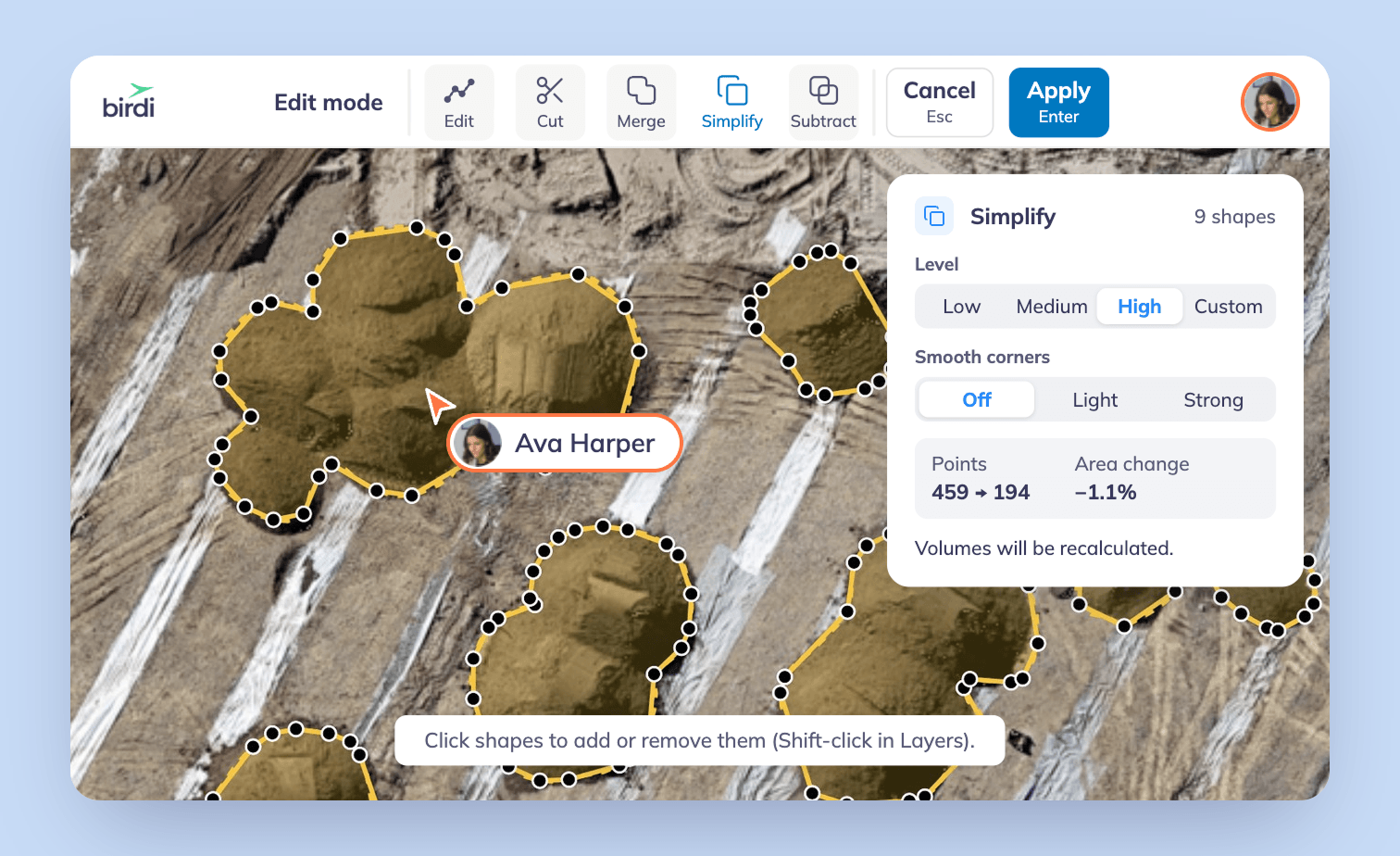
An outline is only as useful as the line someone drew. When it runs past the toe of a stockpile, wraps two piles in one shape, or takes in the building in the middle of a site boundary, the area or volume it gives you is off too. Until now, fixing that usually meant deleting the shape and drawing it again.
Not anymore. Edit mode lets you reshape any annotation right where it sits on the map, and four new shape tools split, join, tidy and trim your outlines in place. Your shape keeps its name, style, labels and material, and volumes recalculate with the same settings.
(Available on Plus, Growth and Ultimate plans)
What's new
- Edit mode (E): drag a point to move it, click an edge to add one, or click a point to remove it. Changes save as you move on to the next shape
- Cut (X): draw a line across a shape to split it, for when one outline covers two stockpiles sitting side by side
- Merge (Shift+M): join shapes that touch or overlap into one, such as an area you drew in several parts
- Simplify (S): remove extra points from busy outlines, such as AI Detect or Free Draw shapes, one at a time or a whole set at once
- Subtract (Shift+S): take one shape away from another, such as a building, pond or exclusion zone from a site boundary
- Draw and edit in 3D: every annotation tool now works in the 3D view, and what you draw there shows up on your 2D map too
- A tidier toolbar: tools are grouped into Annotations, Detect and Inspect menus, draw tools stay on until you press Esc, and AI Detect now runs from the nav bar on a photo, the whole map, or an area you draw
- Select several at once: Shift-click or Shift-drag to select shapes, then edit or delete them together, or right-click any shape to edit or delete it
- See it before you save: every shape tool previews the result right on the map, and you can switch between tools as you go, then apply once at the end
What you'll need
- A Plus, Growth or Ultimate plan
- A map with annotations to edit
- For 3D, a plan that includes 3D
Where it helps most
- AI Detect results: an outline that runs past the object, two stockpiles detected as one, or an outline with far more points than it needs. Pair it with Birdi's new Stockpile model: detection draws the first pass, and edit mode is how you fix the few that need it.
- A new survey: adjust last month's boundary to this month's site instead of starting from scratch.
- Net areas: subtract buildings, ponds and exclusion zones from a site boundary, so the area you report is the area that counts.
- Quick shapes drawn on site: tidy them up later, at your desk.
Getting set up
- Open your map and the annotations you want to change.
- Turn on edit mode: click the pencil in the toolbar, or press E. Every visible annotation shows its points.
- Change the shape: drag, add or remove points, or pick Cut, Merge, Simplify or Subtract from the edit bar.
- See the result on the map as you go.
- Click Apply (or press Enter) to save, or Exit (Esc) to leave edit mode.
Just finished drawing a shape? Press Enter to open it straight in edit mode.
The full step-by-step walkthroughs are in our Knowledge Base: How to edit annotations in Birdi and How to cut, merge, simplify and subtract annotations in Birdi
FAQ
Which plans include edit mode and the shape tools?
Plus, Growth and Ultimate. Drawing and editing in 3D needs a plan that includes 3D.
Will editing an outline change my volume?
If the shape is a volume measurement, Birdi recalculates its volume with the same settings after the edit. The shape keeps its holes, style, labels and material, so the work already in it carries over.
Can I edit several shapes at once?
Yes. Shift-click or Shift-drag to select several shapes, then edit or delete them together. Simplify can tidy a whole set of busy outlines in one go.
Do the tools work in 3D?
Yes. Edit mode and the shape tools work in 2D and 3D, and you can now draw annotations in the 3D view too.
Fix the outline, keep the work
Your annotations hold your labels, materials and volume settings. Now you can get the shape right without losing any of it.
👉 Learn more in the Knowledge Base
Related reading: How to draw and edit annotations in 3D in Birdi · Birdi's Stockpile model just got an upgrade · How to correct stockpile outlines before you calculate volumes