
Introducing the Birdi AI connector: your sites in Claude, ChatGPT, Copilot and Gemini

The way we use GIS software is changing. The old way, you learned it: which layer the survey lives in, which tool measures the stockpile, which export goes into which report. And the people asking for the answers, in email, in a spreadsheet, in Procore, waited for whoever knew where everything was.
That deal is flipping. The software holds the record, and you ask it for what you need.
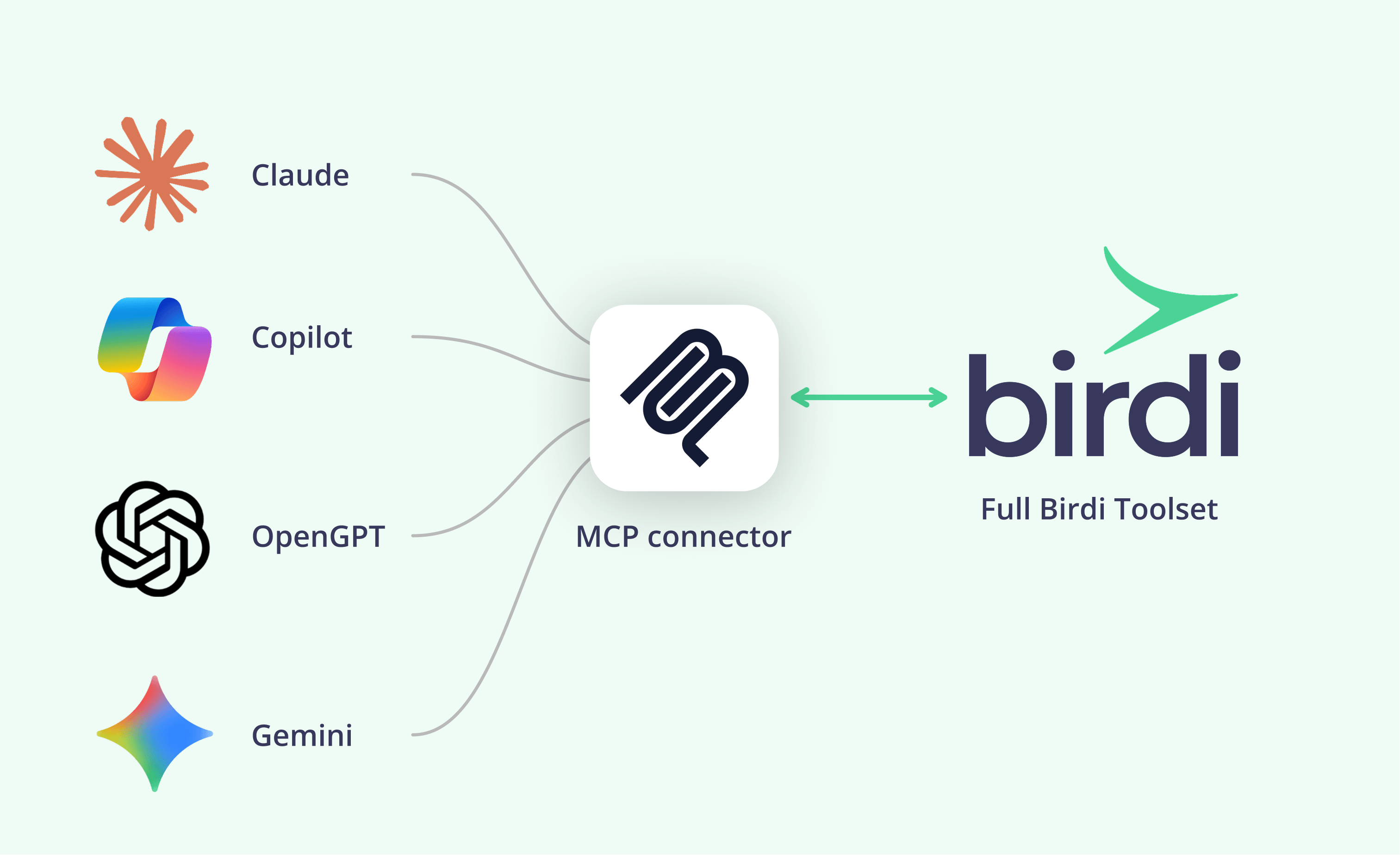
That's what the Birdi AI connector (MCP) is for. Birdi keeps every survey, measurement and map of your site. Link it to Claude, ChatGPT, Copilot or Gemini, or another assistant that supports MCP connectors, and ask for the work in plain language: you get the answer in a fraction of the time, visualized the way you need it. What each assistant can do depends on its plan, as the FAQ below explains.
(Available on all paid Birdi plans)
What's new
- Ask about your sites: find maps, layers, sites, processing jobs and reports across your workspace
- Measure: areas, lengths, volumes and tonnage, using your saved materials
- See the map: ask for a snapshot of a map, or a description of what's on site in the latest capture or a single drone photo
- Get work done: create and organize maps, calculate volumes, and generate contours and hillshades
- Build reports your way: PDF reports in your own format, or in each client's branding
- Upload and process: send a capture for processing straight from your laptop, using Claude Code
- Choose the access level: Read-only, or Read & act, decided when you connect
Popular use cases
- Month-end stockpile reporting: "Run the month-end stockpile report for the ROM pad and compare it with last month."
- Construction progress for the client: "Compare the August and September earthworks on Gregory Hills and draft the progress summary for the client."
- Firms capturing for several clients: one saved report template per client, each with its own branding, units and sections
- A figure where you need it: a volume in an email or areas in a spreadsheet, without opening Birdi
Reports your client's way, set up once
This is where the connector earns its place. Describe the report once in plain language: your logo or your client's, metric units, a summary table of cut and fill per stockpile, side-by-side imagery of each pad. Go through the first draft with your assistant, agree the sections and the checks it should run, then save it as a template in a project (for one team) or a skill (for many teams or clients).
From then on, each report is one sentence: "Run our volume change report for Blackwood Ridge, September vs October." The assistant pulls fresh figures and imagery from Birdi, fills your template and produces the finished report. If your assistant supports scheduled tasks, you can put it on a schedule too.
You own your templates and can change them whenever you like. Birdi has starter templates for some report types, so get in touch if you'd like to talk through your reporting workflow.
Getting set up in Claude
- Open your connector settings: in Claude, go to Customize > Connectors. On a Team or Enterprise plan, an owner may need to add Birdi first.
- Add Birdi as a custom connector: name it Birdi and enter the address
https://api.birdi.io/v1/mcp. - Sign in with your Birdi login: Single Sign-On works too, so your team's existing access rules still apply.
- Choose what it can do: Read-only to explore and answer questions, or Read & act to also create maps, run calculations and produce outputs. Not sure? Start with Read-only.
- Ask your first question: switch Birdi on in a new chat and try "What maps do I have in Birdi?"
ChatGPT, Microsoft Copilot and Gemini follow the same pattern through their own connector settings, within the limits each one sets. The full walkthrough, with a compatibility table for each assistant, is in our Knowledge Base: How to connect Birdi to your AI assistant
Things to keep in mind
- The source of truth doesn't move. Every measurement and volume still comes from Birdi, in your map's own units. The assistant asks for it and reports it; it doesn't calculate its own.
- It works as you. The assistant signs in as you and can only see and do what you can in Birdi, within your plan. The connector can't delete data, share maps, invite users or send emails.
- No surprise processing charges. Before anything is processed, you get a quote. It only uses your existing processing credit, and only after you confirm. If a job needs more credit than you have, you'll get a payment link instead of a charge.
- What it sees is a second opinion. A description of a map or photo is a helpful second pair of eyes, not a qualified assessment. For exact counts, measurements or outlines, use Birdi's measurement tools or AI Detect.
- Uploading needs file access. Only an assistant that can see the files on your computer, such as Claude Code, can upload a capture. Every other assistant can do everything else once your data is in Birdi.
- Live map work stays in Birdi. Zooming, side-by-side compare and the timeline are still at their best in the app, and Scout is there to help while you work inside it.
FAQ
Which plans include the Birdi AI connector?
All paid Birdi plans.
Which AI assistants does it work with?
Any assistant that supports MCP connectors, including Claude, ChatGPT, Microsoft Copilot, Gemini and Cursor. What each one allows is set by its maker. Claude supports custom connectors on every plan. ChatGPT needs a Business, Enterprise or Edu plan for Read & act. Microsoft 365 Copilot's standard connector is read-only. The Gemini app isn't available in Australia or on work accounts. The Knowledge Base has the full table.
How is this different from Scout?
Scout is the AI assistant built into Birdi, for when you're working inside the app. The connector brings the same capabilities into your own assistant, so it can combine Birdi with the other tools you work in, like email and spreadsheets.
Can the assistant change or delete my data?
With Read-only, it can't change anything. With Read & act, it can create and organize maps, run calculations and produce outputs. Either way, it can't delete data, share maps, invite users or send emails, and you can remove the connector at any time.
Know your site, not every button
You still need to know your site. You just don't need to know where every button is: Birdi holds the record, and you ask for what you need.
👉 Learn more in the Knowledge Base
Related reading: How to create reports with Birdi and your AI assistant · Meet Scout, Birdi's AI agent · How to evaluate an AI agent for geospatial work