
Introducing the DJI FlightHub 2 integration in Birdi

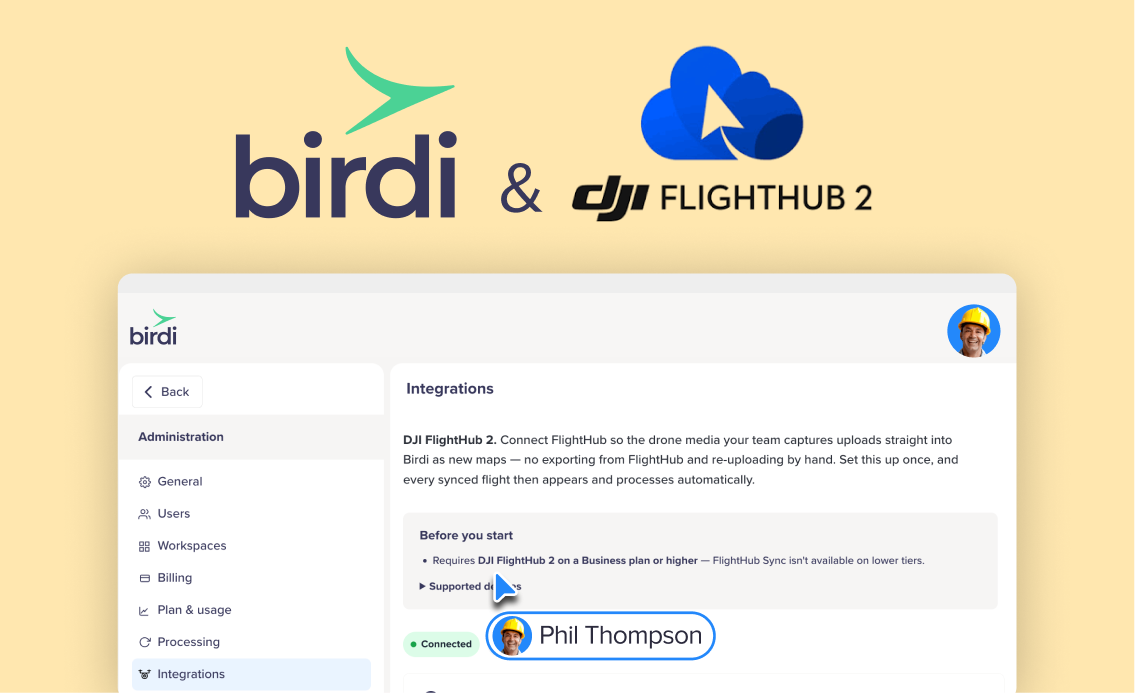
Anyone flying DJI drones on a regular basis knows the routine after landing: pull the SD card, plug it into a laptop, wait for the transfer, then upload everything into your mapping platform by hand.
Multiply that across a fleet of drones, multiple sites, and a full day of flights, and file handling quietly eats up hours that should be spent turning captured data into finished maps — not moving files between devices.
With Birdi's new DJI FlightHub 2 integration, that manual step disappears. Media captured on your flights syncs into Birdi automatically, ready to process into maps without anyone touching an SD card.
(Available on all Birdi plans)
What the integration does
- Syncs flight media from DJI FlightHub 2 into Birdi automatically
- Stores that media in a dedicated, secure cloud storage bucket that's yours
- Lets you control exactly which projects sync, so only the data you want lands in Birdi
- Keeps data separated by workspace, so different clients, sites or regions stay tidy
What you'll need
- A Birdi account with admin access to set up the integration
- A paid DJI FlightHub 2 Business plan or higher — free or trial tiers don't expose the settings required
- A supported DJI dock, drone or payload (Dock 3/2/Dock, Matrice 400/350 RTK/30 Series/4 Series/4D Series, Mavic 3 Enterprise Series, and more)
One workspace, or many?
The integration can be configured per workspace. If you run a single organization, set it up once and every synced flight lands in one bucket. If you manage multiple clients, sites or regions through sub-workspaces, set the integration up separately in each one — every sub-workspace gets its own storage bucket and connection details, keeping data isolated.
Getting set up
Setup takes place in two systems — a few steps in Birdi to generate your connection details, then a matching set of steps in DJI FlightHub 2 to point your flight data at Birdi:
- Generate your connection details from Administration > Integrations in Birdi
- Copy those details across to DJI FlightHub 2's organization settings
- Add Birdi as a third-party cloud service under FlightHub Sync
- Configure file synchronization with your bucket details
- Set project sync rules for each project you want to sync
- Set up event notifications so Birdi knows when new media has landed
- Run a test flight and confirm the media appears in your Birdi workspace
The full step-by-step walkthrough, including screenshots for each step, is in our Knowledge Base: How to connect DJI FlightHub 2 to Birdi
FAQ
Do I need a specific DJI plan?
Yes — a paid DJI FlightHub 2 Business plan or higher. Free or trial tiers don't expose the cloud sync settings needed.
Can I choose which projects sync?
Yes — sync rules are set per project, so only the data you want lands in Birdi. There's no "sync everything" toggle, so add a rule each time you create a new project in DJI.
Is this available on all Birdi plans?
Yes, the integration is available on all plans.
Can I keep different clients' data separate?
Yes — set the integration up per sub-workspace so each client or site gets its own storage bucket.