
Introducing map canvas exports in Birdi

.png)
Getting a clean, professional map into a report has traditionally meant screenshots or jumping between different desktop GIS tools. With Birdi's new map canvas export feature, you can now generate high-quality, ready-to-share PDFs or images directly from your Birdi map in just a few clicks!
(This feature is available on all Birdi plans)
What are map canvas exports?
Map canvas exports let you export exactly what you see on your Birdi map — orthomosaics, vectors, measurements, annotations, DEMs, contours, stockpile volumes, site layers, and more — as a polished PDF or PNG.
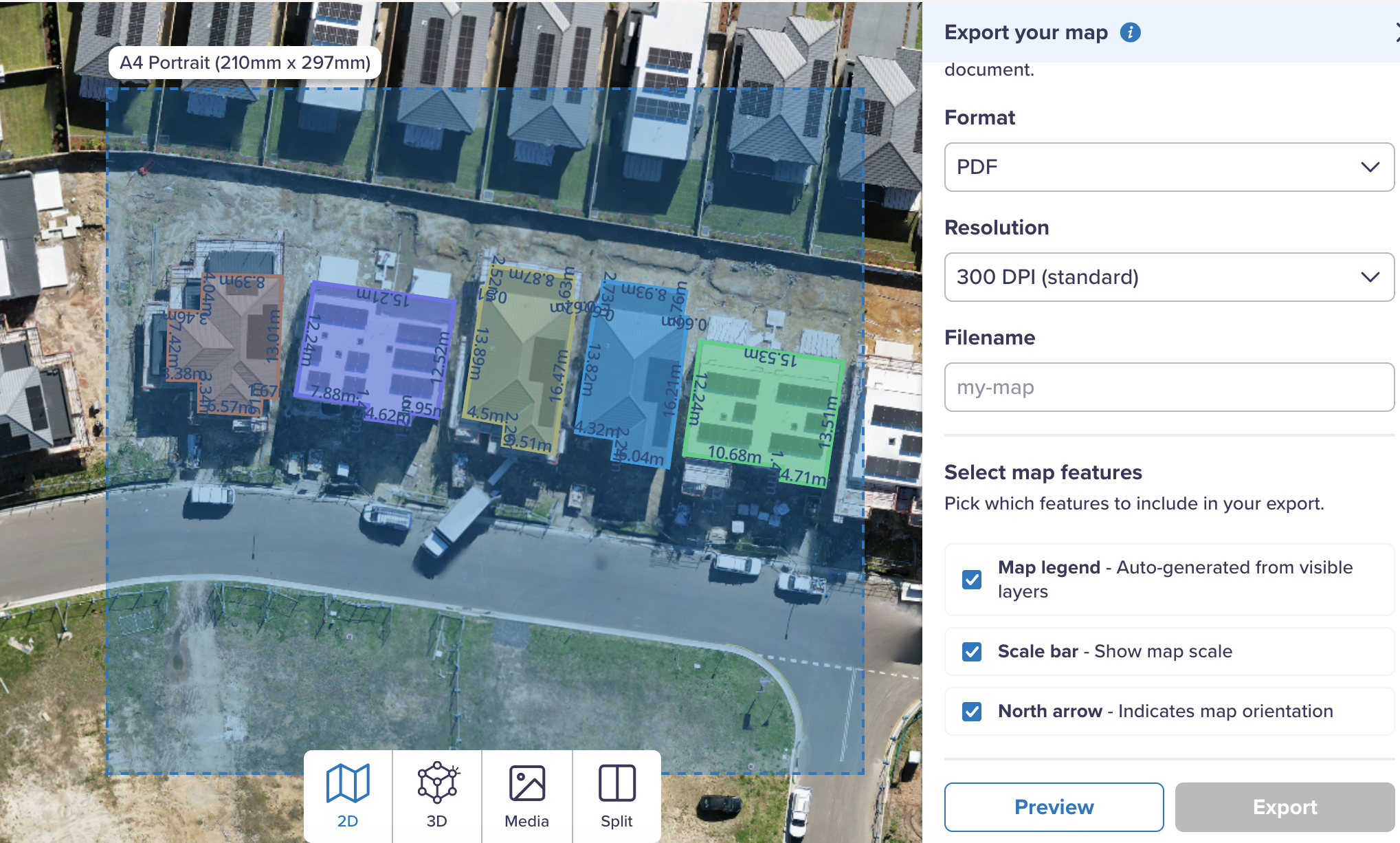
Everything visible on your map is included. Everything hidden stays out. It’s a faster, cleaner way to produce consistent spatial documents for reporting, compliance, planning, and collaboration.
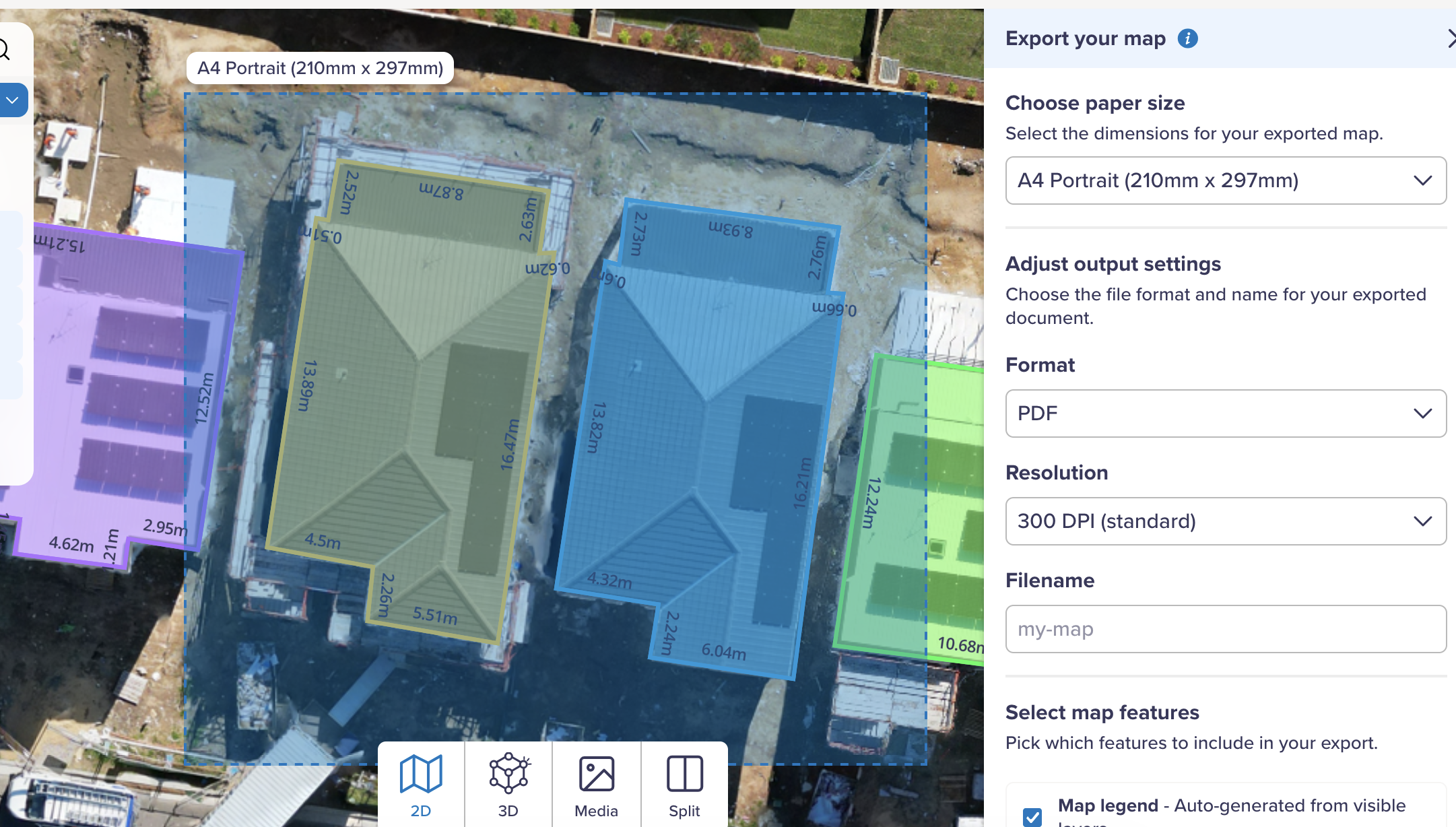
How it works: exporting your map
- In your Birdi map, click New Export in the top toolbar.
- Choose your layout:
- Page size: A4 or A3
- Orientation: Portrait or landscape
- Format: PDF (for printing) or PNG (for quick sharing)
- Resolution: Adjust for clarity or file size
- Report name: Name the export for easy identification later
- Add optional map elements:
- Legend (auto-generated from visible layers)
- Scale bar
- North arrow
- Adjust the export area using the cropping box — pan, zoom, or refine the region.
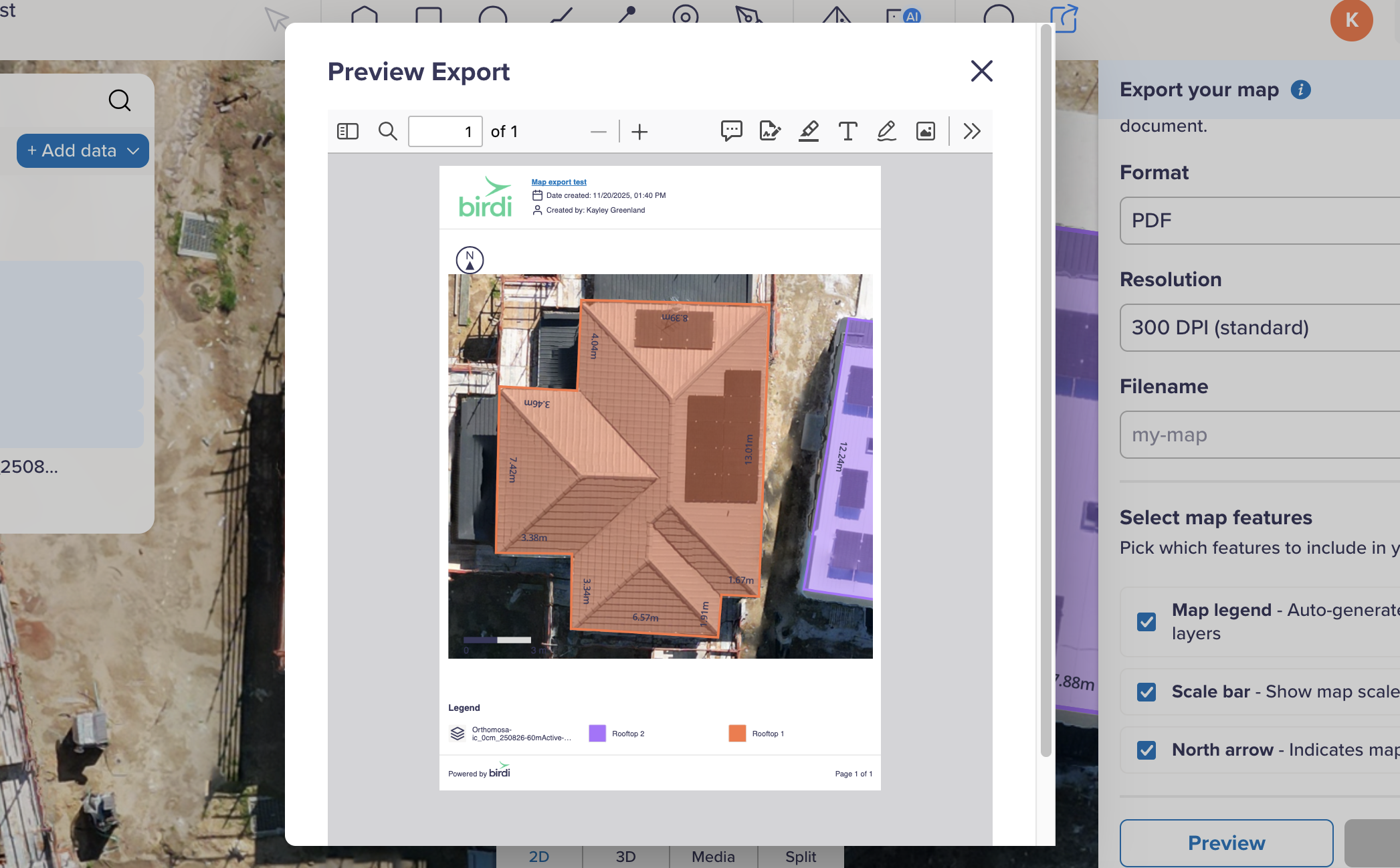
- Preview your export (optional) to confirm the layout.
- Click Export. Your file will also appear as a layer, ready to download or share.
You can export the entire site or zoom right into a small area of interest. The output is always based on what’s currently visible on the map.
Map canvas export use cases
Produce professional documents quickly
Create clean A4 or A3 PDFs for stakeholders, contractors, clients, or field teams — without leaving Birdi or editing images elsewhere.
Standardize reporting across teams
Whether it’s a WHS plan, stockpile summary, or development assessment map, exports follow the same structure and layout, helping teams stay consistent.
Replace screenshots and manual markup
No more stitching images together, redrawing boundaries, or adding labels in third-party tools.
Support compliance and planning workflows
Include legends, scale bars, and north arrows for maps used in regulatory reporting, environmental assessments, audits, and council submissions.
Use across any industry
Exports work for progress tracking, safety planning, operational reviews, environmental monitoring, asset inspections, disaster mapping, and more.
Things to keep in mind
- Only visible layers are included — toggle off anything you don’t want to appear.
- Rename layers for a clean legend.
- Use PDF for high-quality, printable reports; PNG for quick visuals.
- A workspace logo (if uploaded) will brand your exports.
- A3 landscape provides the most room for full-site maps.
Some example map canvas exports
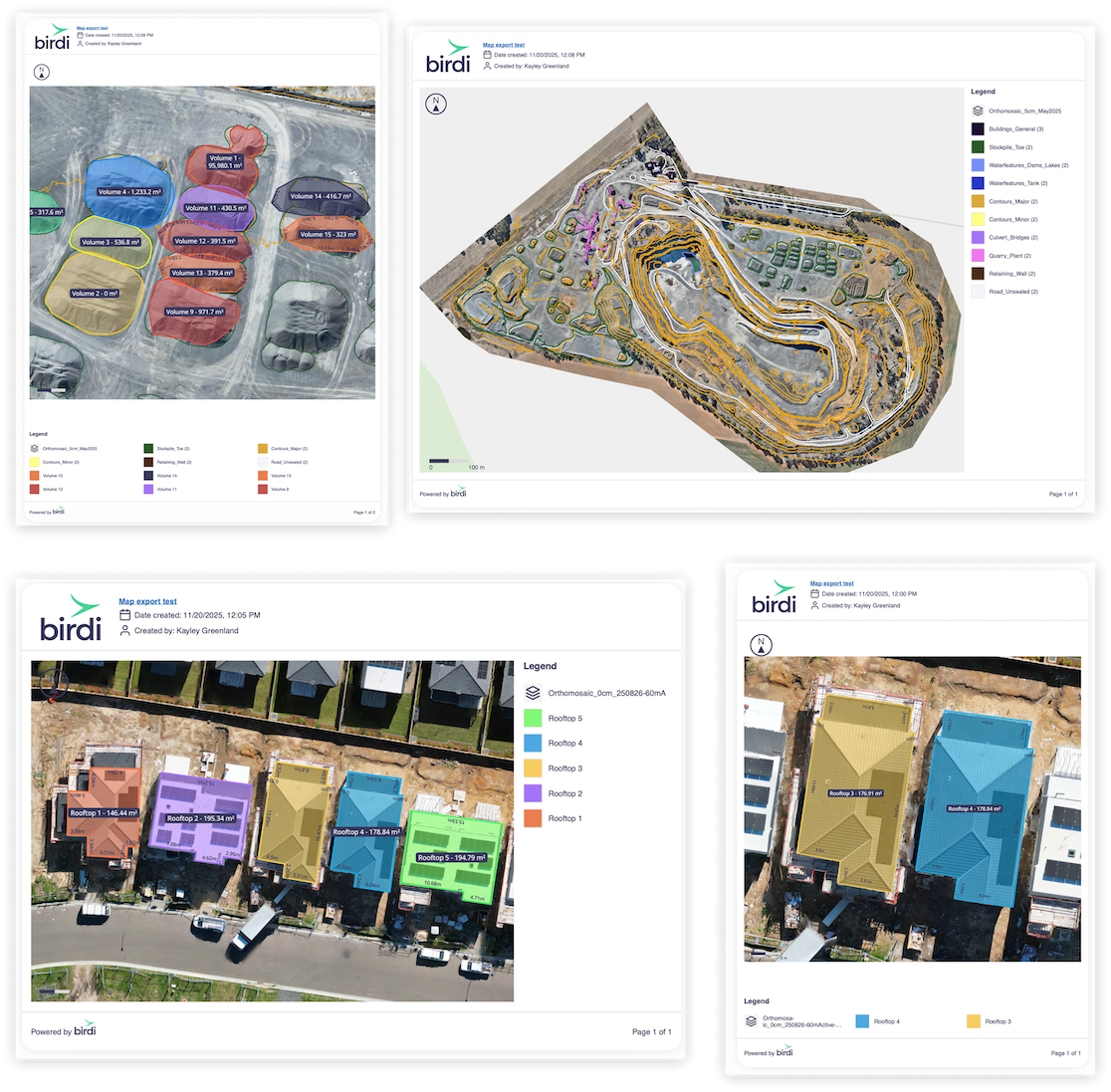
A faster way to share the maps that matter
Map canvas exports give you a simple, reliable way to capture and share exactly what’s on your Birdi map — without screenshots, external tools, or formatting work. It’s clarity, consistency, and speed, built right into your workflow.
👉 Learn more in the Knowledge Base